ATLAS WebUI#
file version: 28 Aug 2026
ATLAS WebUI currently unavailable
Overview#
ATLAS is the main interface for interaction with the DKRZ tape archive. ATLAS can be accessed via a command line interface atlas and a web-baser user interface WebUI (ATLAS WebUI), whereas the CLI has a few more options.
URL: https://tapearchive.dkrz.de (currently unavailable; not available before Oct 2026)
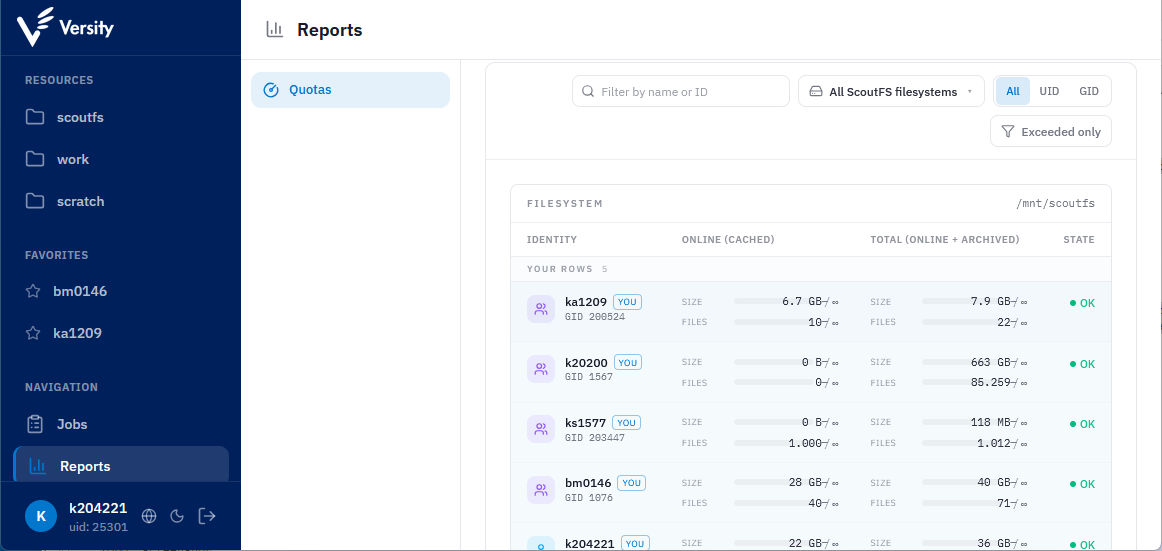
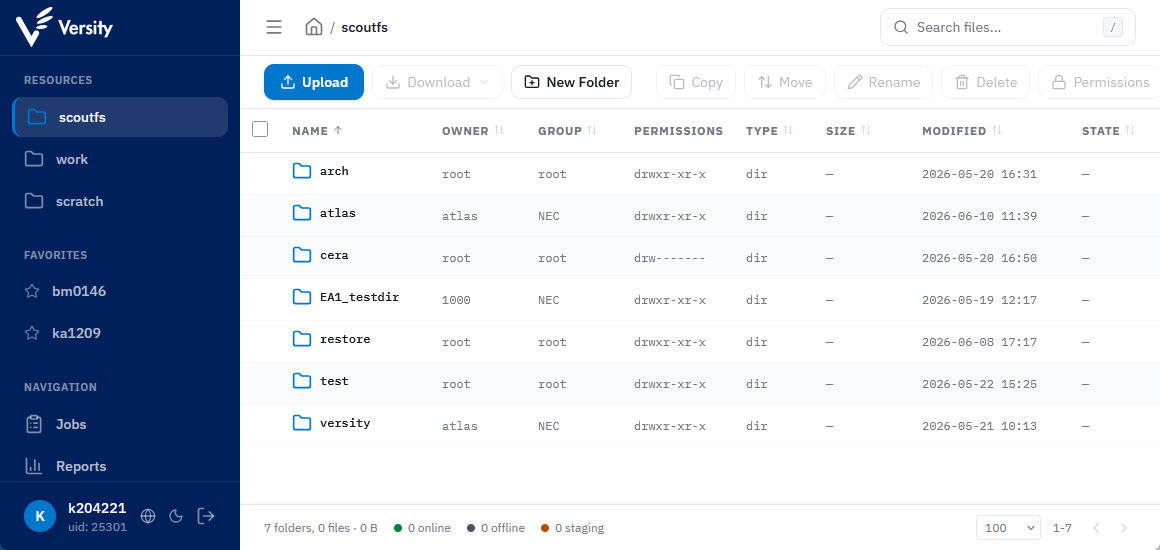
Below is a screenshot of the web interface after login. This is the file browser view. On the left-hand side, you see a pane with “resources”, “favorites” and “navigation”. The latter contains the items “jobs”, which opens a “jobs view”, and “reports”, which opens an overview of your quota usage.
The Versity developers are still adapting the WebUI to our needs and the configuration is not finalized at the time of writing this documentation. Therefore, locations and labels of buttons are due to changes.
Left Pane#
resources: Select a resource/storage to browse through. Later, the tape archive and
/workwill be available as resources.favorites: Store favorite folders via drag-and-drop from the file browser view. Click a favorite to jump to the specific folder.
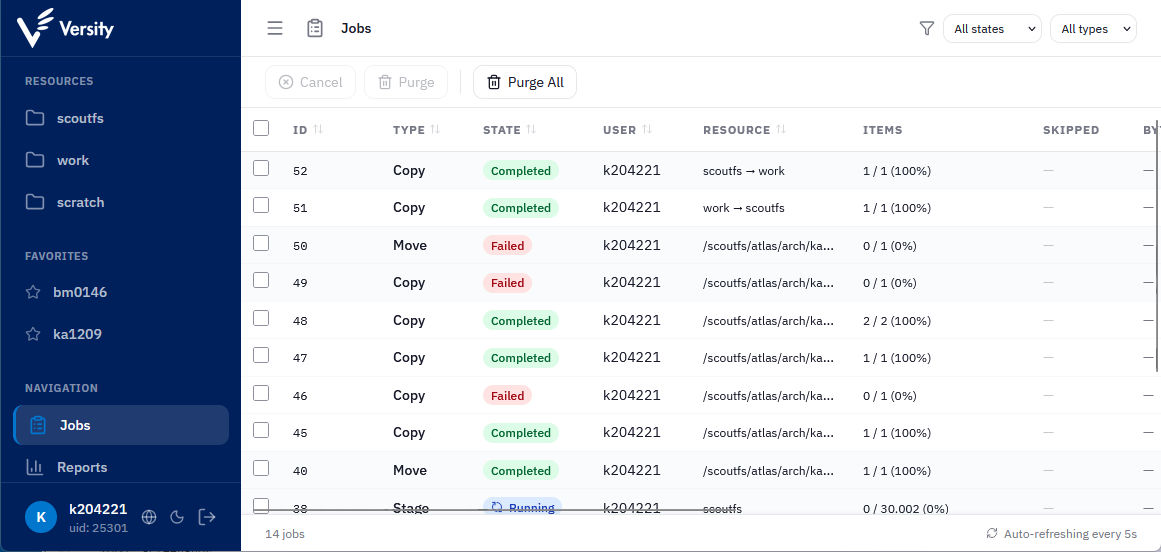
jobs: Opens jobs view. List active and finished jobs which ATLAS runs/ran for you. E.g. data transfers started by the
copybutton or byatlas cpare displayed here.
File Browser View#
If you are unsure what specific buttons mean, please have a look at Getting started
Upload: transfer one or multiple files from your local system where the web browser is opened to Versity
Download: transfer one or multiple files from Versity to your local system where the web browser is opened
New Folder: create new folder
Copy: copy files or directories between two locations onto which ATLAS has access; either duplication of a file within the HSM or a transfer between Lustre filesystem and HSM; a job is started in the background and WebUI can be closed
Move: move files or directories between two locations within the HSM filesystem. It performs a real move when used with different filesystems. Please use
copyinstead for this purpose. A job is started in the background and WebUI can be closed.Delete: remove file or directory
Permissions: set normal permissions and extended ACLs
Retention: set retention period; within this period a file cannot be modified or deleted
Checksum: Calculate a checksum of a type the user selects
Stage: copy a file from tape to cache
Release: tell ScoutAM to remove the file from the cache during the next cache cleanup
Tags: view, set and/or remove user-defined key-value pairs
Show Hidden: toggle to show hidden files; these are files which names start with a dot
.
Jobs View#
This view shows all active jobs and all past jobs of the previous week. You can cancel running jobs and purge the list.
Reporting View#
Here you’ll find your quota usage in individual projects