
Data Transfer with Globus#
Globus allows to transfer large datasets efficiently between HPC systems, cloud storage resources, institutional servers, and personal computers. The service automatically optimizes transfer performance by tuning network parameters, using parallel transfers, and retrying failed operations, ensuring reliable and high‑throughput data movement even over long‑distance or unstable network connections.
The How To Log In and Transfer Files with Globus Tutorial explains in details how to get started with Globus and is highly recommended.
Logging into Globus#
Globus uses Globus Auth to handle authentication and authorization. Globus Auth supports federated authentication, allowing you to sign in with your organizational credentials (issued by your home institution, such as a university or research institute) without creating a separate Globus account.
To log into Globus Web App, open https://app.globus.org and choose your home organisation (e.g. University of Hamburg, GWDG, AWI Helmholtz-Zentrum etc.) from a searchable drop-down menu.
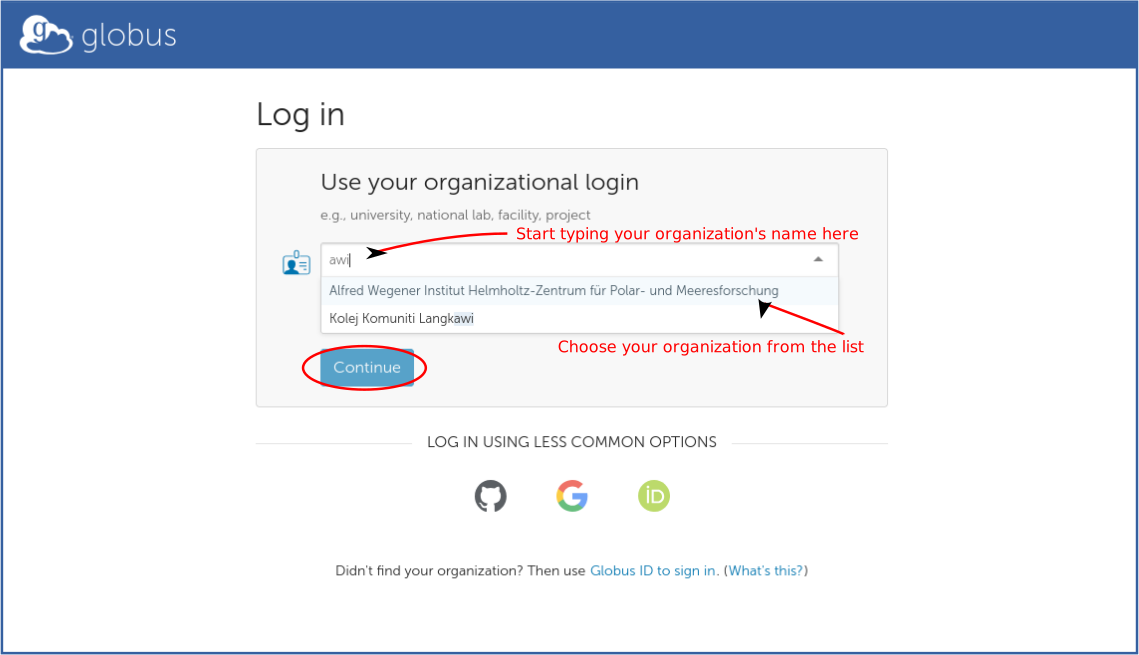
After selecting your organisation and clicking the Continue button, you will be redirected to your institution’s Identity Provider (IdP), where you can authenticate using the credentials (username and password, plus MFA if required) issued to you by your institution.
If your home organization does not operate its own IdP or is not federated with Globus, you can use one of the following identity providers: ORCID, GitHub, and Google as fallback authentication option.
After authenticating with your IdP, you will be redirected back to Globus. First-time users will be prompted to complete the signup process by providing additional information and agreeing to the Terms of Service and Privacy Policy, as well as the use of their identity to perform actions on their behalf.
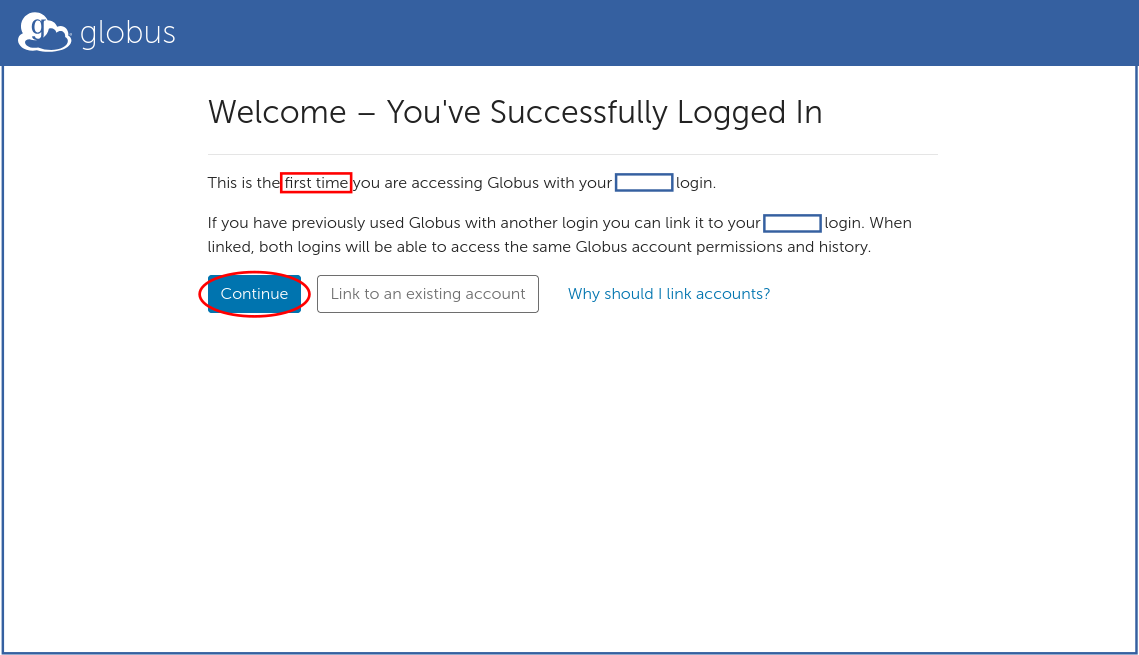
If you have already used Globus with another identity, you can link different identities as described in the Identity Linking Tutorial.
Using the File Manager#
Upon successful login, you will be directed to the Globus File Manager page. The ‘Collection’ and ‘Path’ fields are not pre-filled by default. You can click Get started by taking a short tour to become familiar with the main interface elements of the file manager.
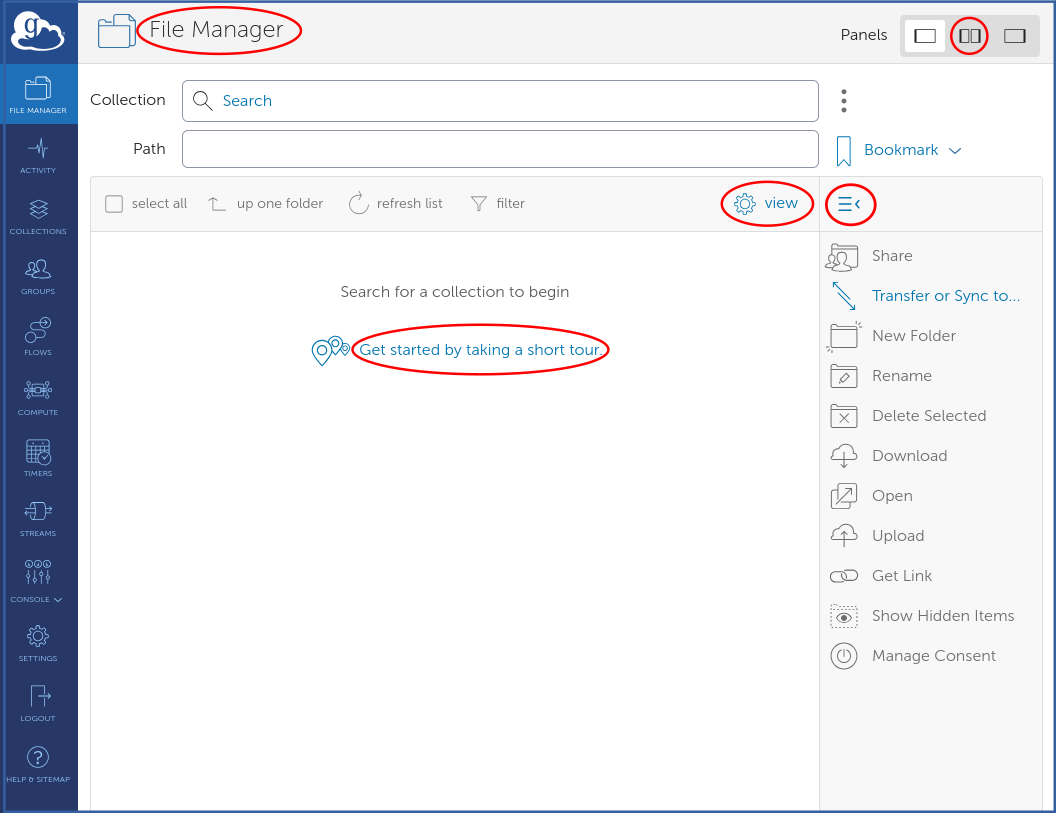
From the user’s perspective, Globus uses Collections to represent data locations and the associated access policies and permissions. A collection corresponds to a specific directory path on a storage system, such as a server, cloud bucket, or local machine. Each collection has a human-readable display name and a unique identifier (UUID). The UUID is especially useful when multiple collections have similar or identical names.
Accessing the dkrz levante Collection#
In the Collection search field at the top of the File Manager page,
enter dkrz levante to find collections with matching names.
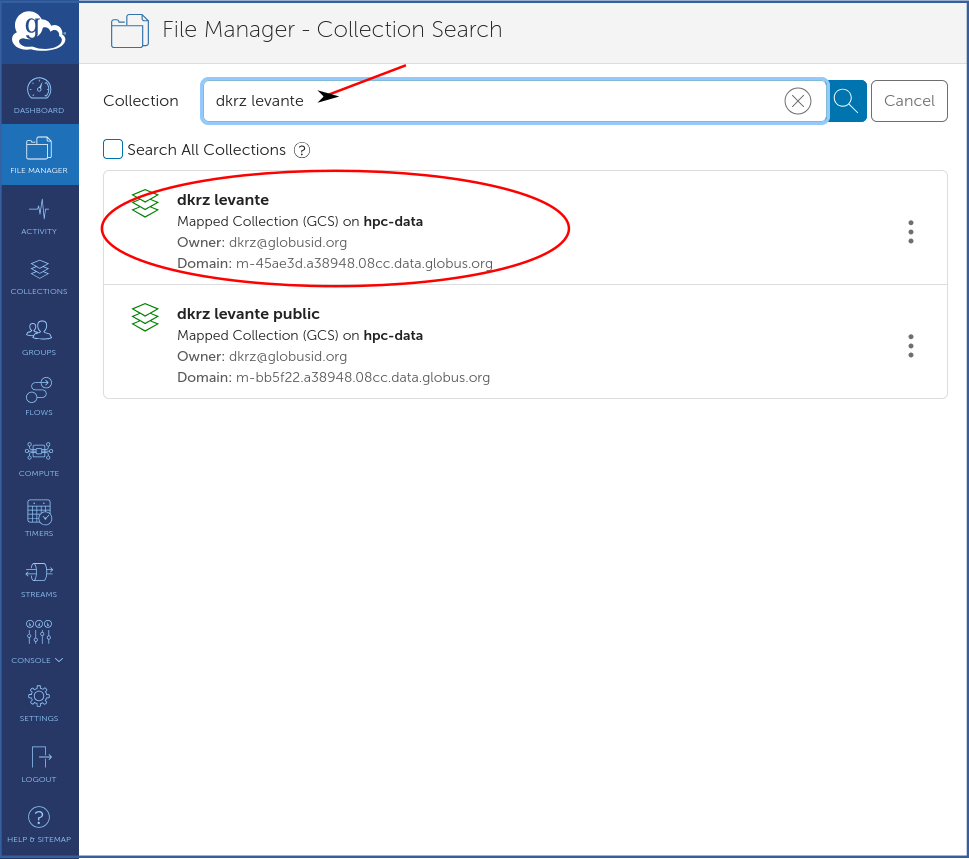
The mapped collection dkrz levante provides access to the
/work project storage space on Levante via Globus using your DKRZ
identity and access permissions. After clicking on this collection you
will be prompted to authenticate again, this time through the DKRZ
Globus OIDC Server (globusoidc.dkrz.de) using your DKRZ
credentials.
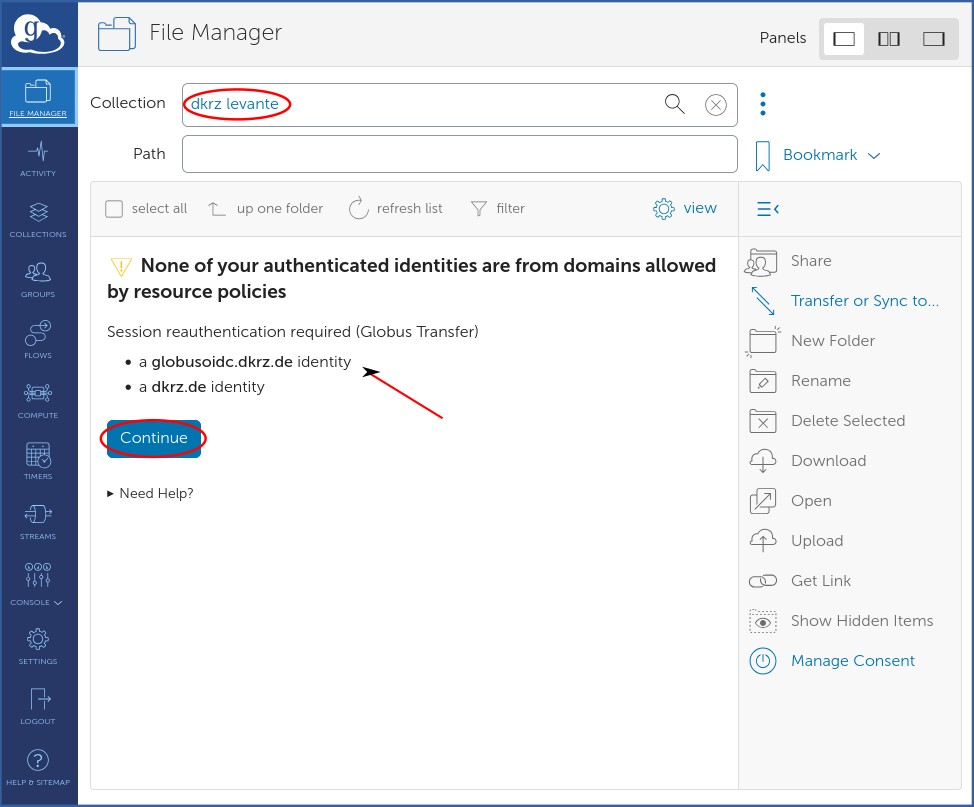
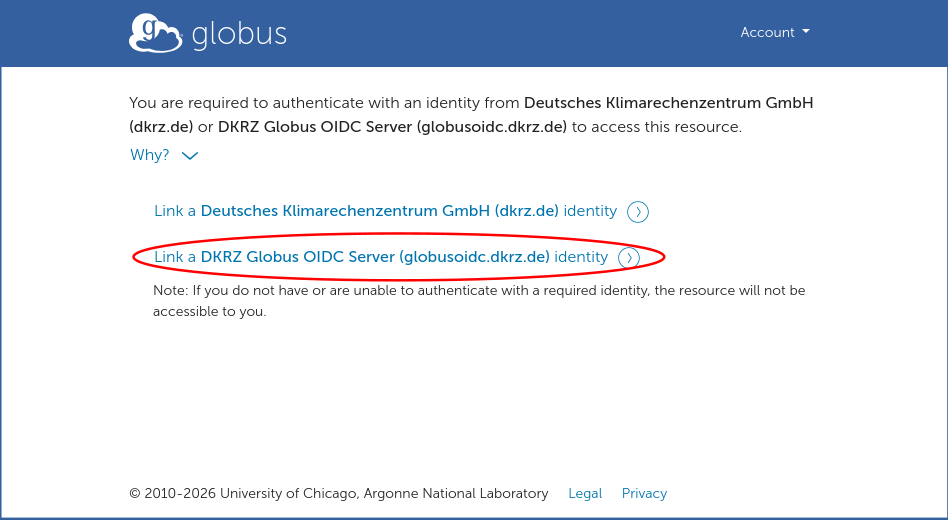
After selecting the option Link a DKRZ Globus OIDC Server (globusoidz.dkrz.de) identity you will be redirected for authentication to globusoidc.dkrz.de.
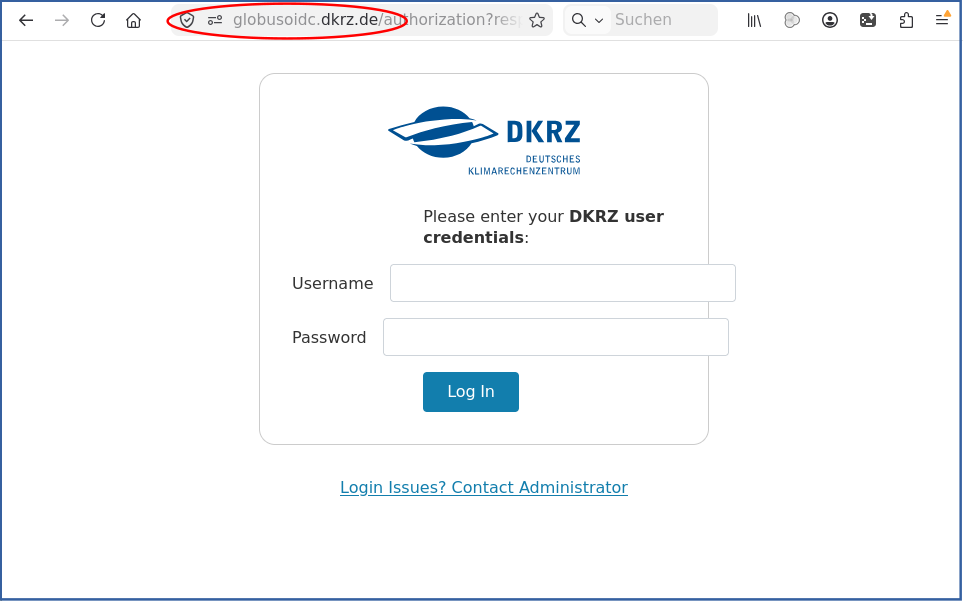
Upon successful authentication using DKRZ credentials your Globus identity will then be linked to the identity assigned by the DKRZ Globus OIDC Server. Note that your DKRZ Globus OIDC identity (username@globusoidc.dkrz.de) is a so-called non-login identity. It can be used to access data on Levante, but not to log into Globus itself.
In the File Manager Globus will now display the default directory
/work for the dkrz levante collection.
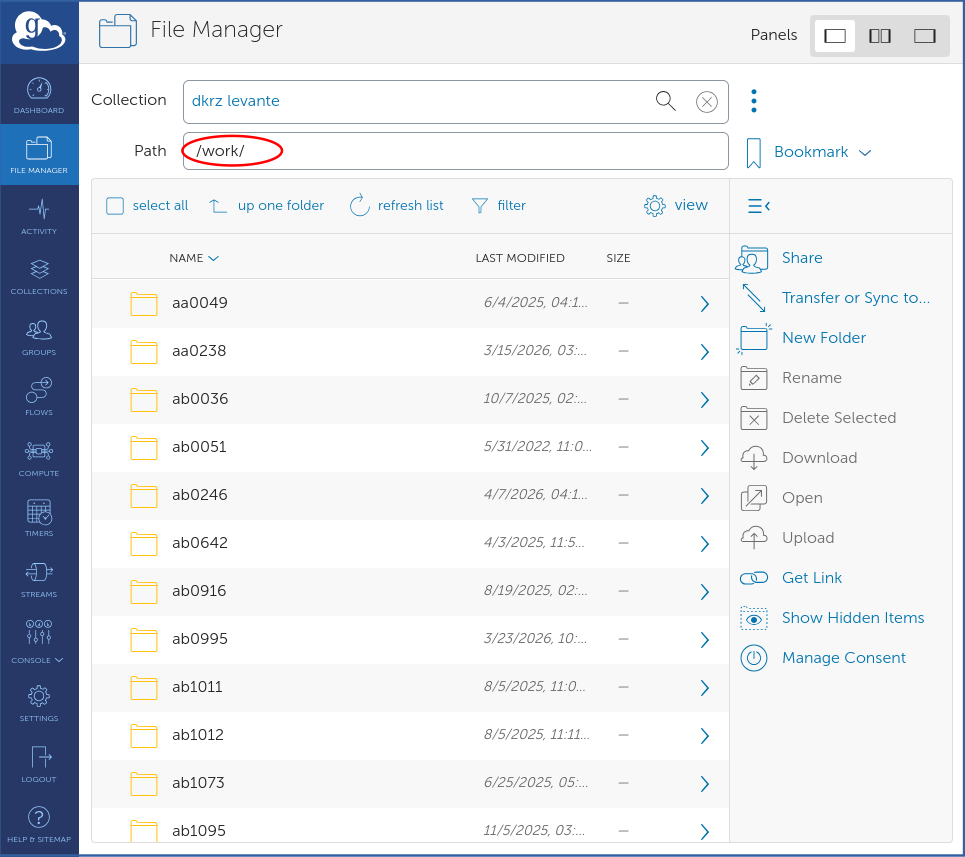
You can navigate to your project folder by using the Path field or by clicking the arrow icons to the right of a selected folder to move through the directory structure.
Starting data transfer#
In Globus, data transfers take place between two collections. To open the second collection panel, click Transfer or Sync to… on the right side of the page, or select the set two pane icon in the Panels settings at the top right.
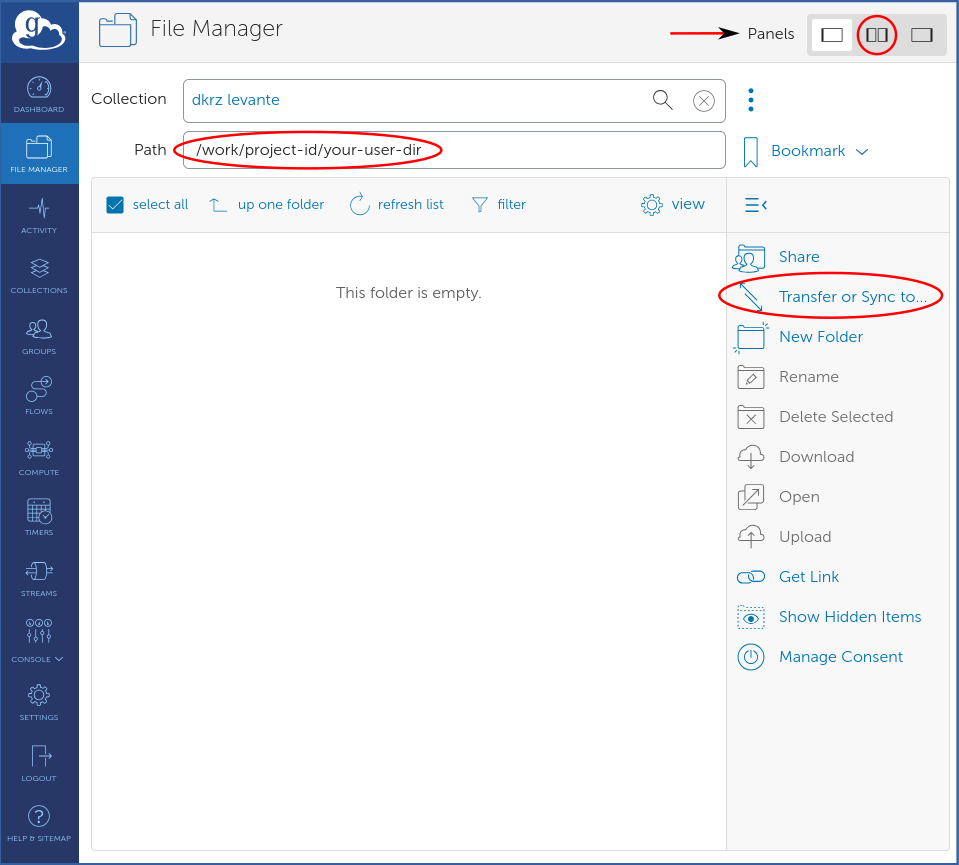
In the second collectio panel you can search for the other collection. Once you have found and selected the correct collection, Globus will prompt you to authenticate to access it. In the source panel you can mark files or folders to be transferred. Globus will then highlight the Start button above the data selection panel.
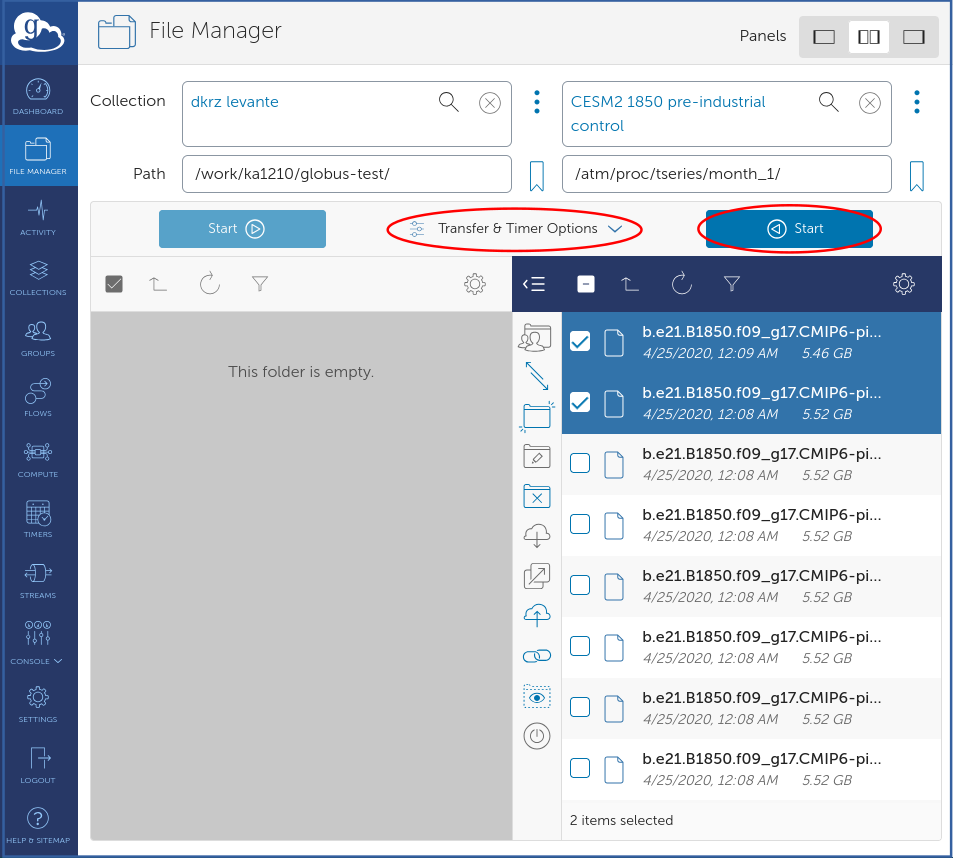
You can use the Transfer & Timer Options drop-down menu located between the two Start buttons to configure transfer behavior. Available settings include the synchronization policy, preservation of source file modification times, checksum verification, and transfer notification options. In most cases, performance relevant settings are adjusted automatically by Globus.
Before starting the transfer, verify your disk quota and permissions at the destination system. For large data sets, it is advisable to transfer complete directory trees or grouped batches rather than many small files individually.
After clicking the Start, button Globus will display a green notification panel to confirm that the transfer request was submitted.
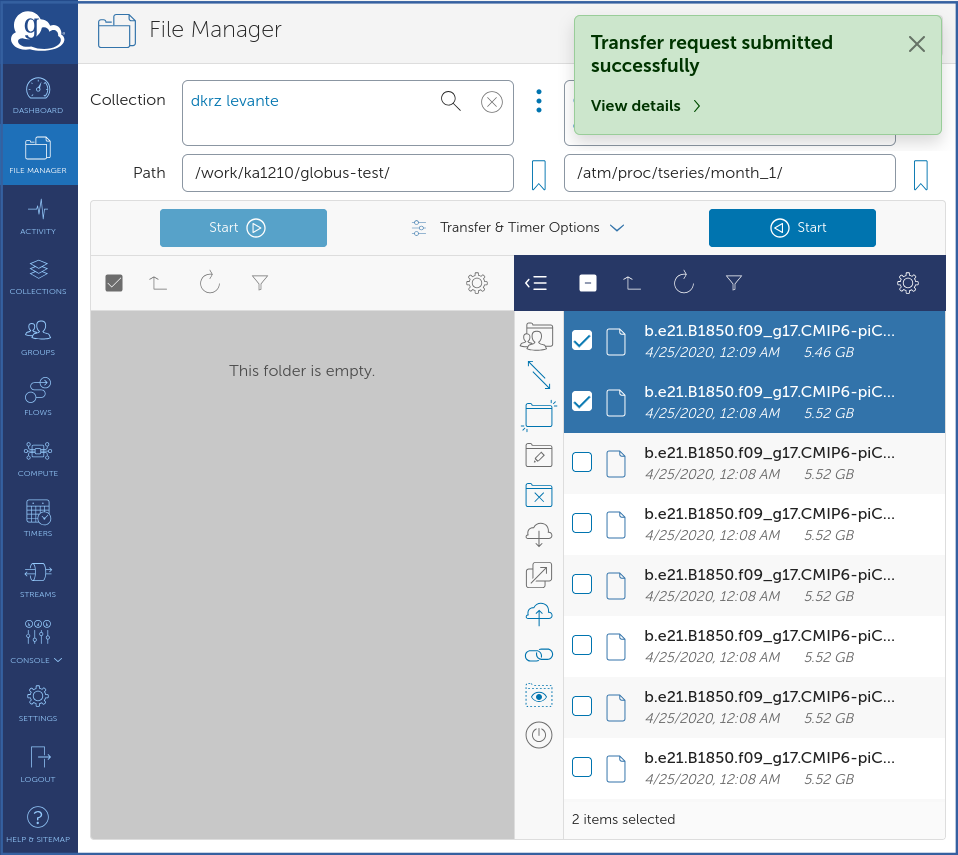
Globus transfers run asynchronously, so you can leave the File Manager or close your browser window. You will receive an email with the transfer details when the transfer completes or fails. Failed transfers are retried automatically.
Monitoring and Managing Transfers#
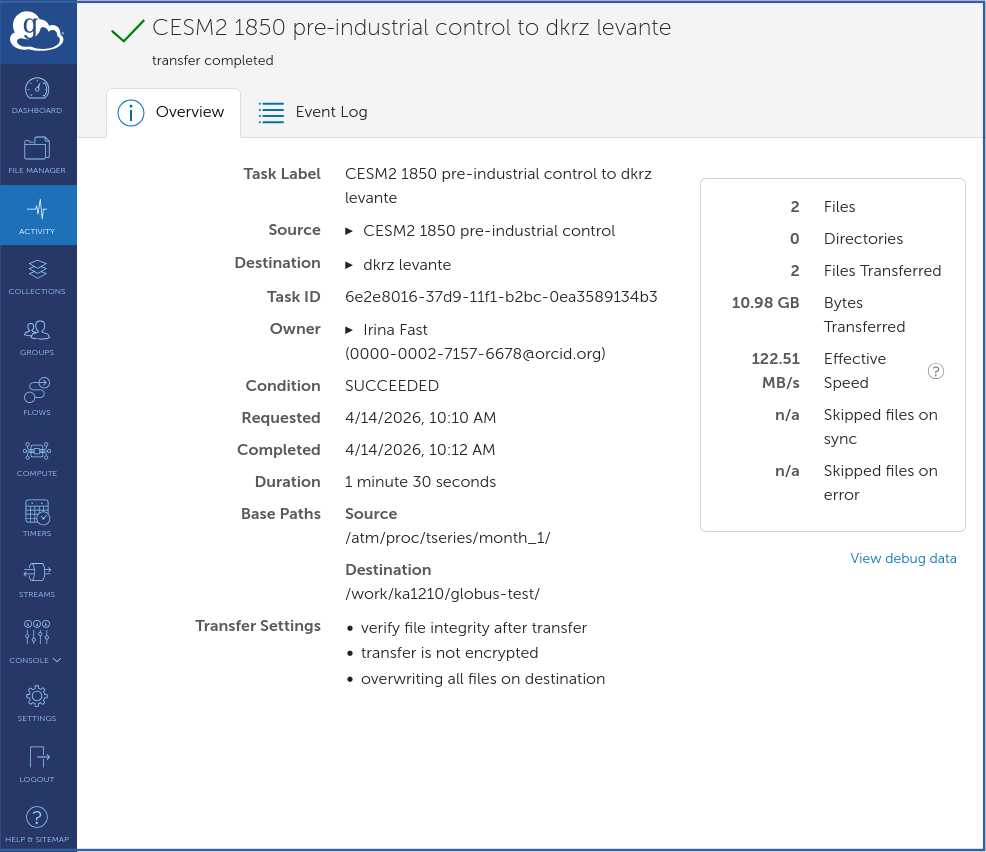
Click Activity in the left sidebar to open the Activity page. The Activity page lists active and past transfers.
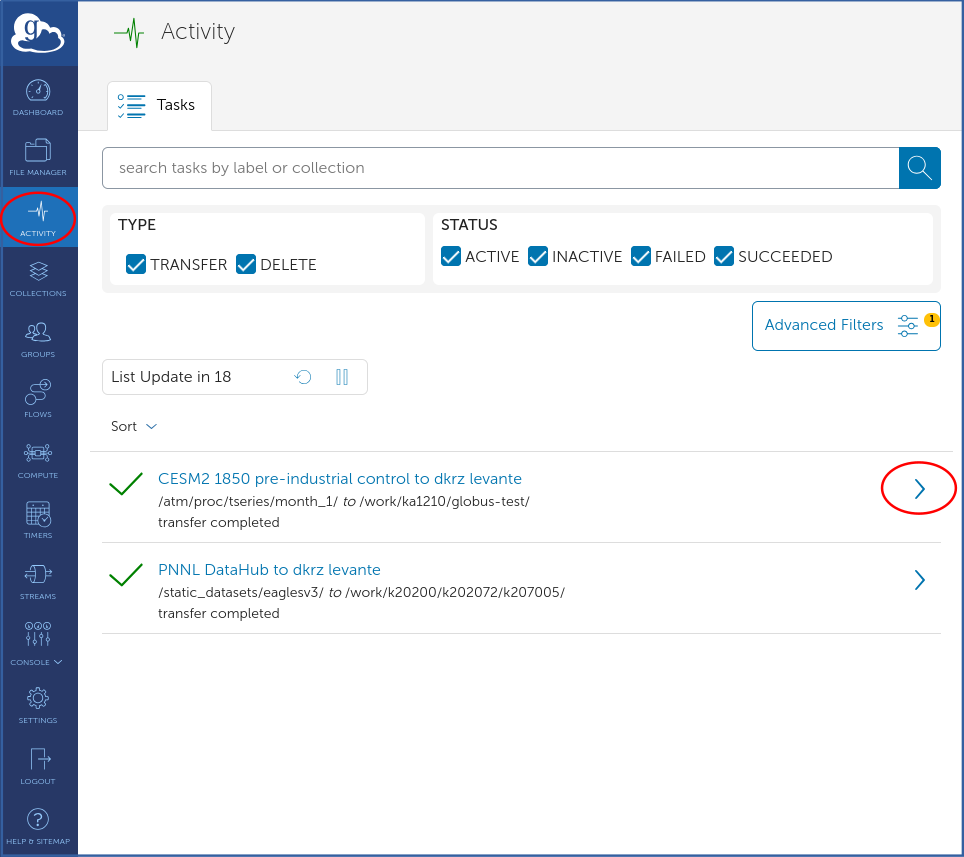
Click the arrow icon to the right of a transfer task to view details for the selected transfer. Ongoing transfers can be paused, canceled, or restated.
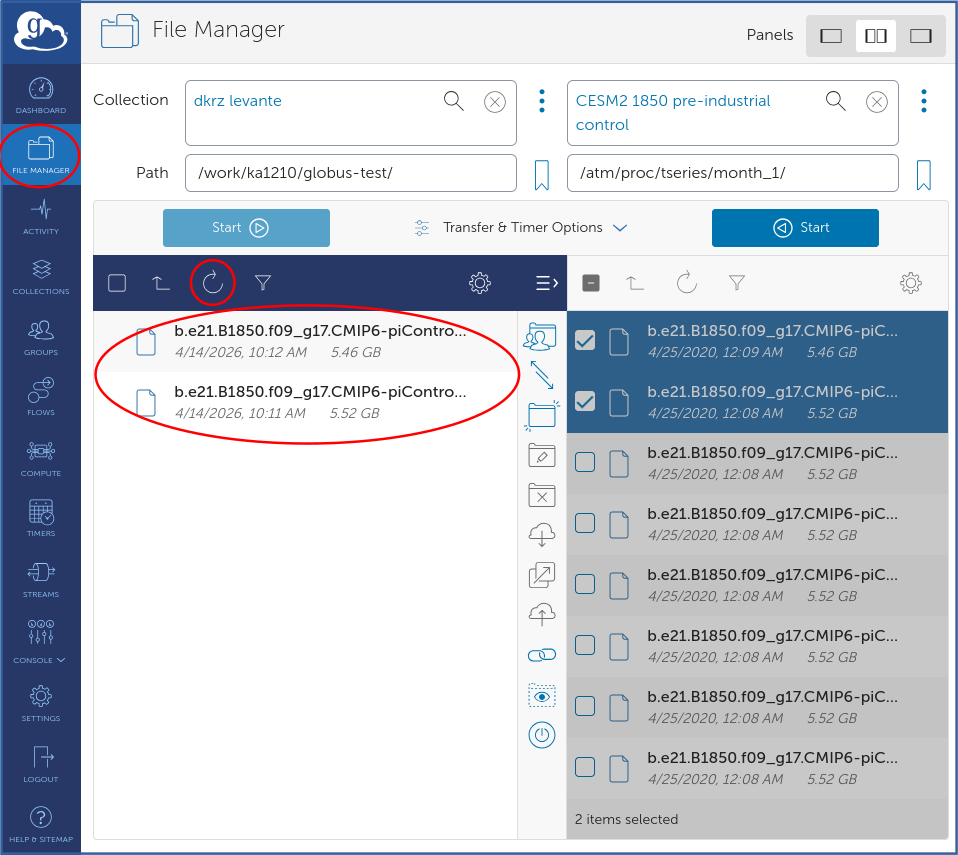
To return to the File Manager page, click File Manager in the left sidebar. The previously used collections will be shown, and the transferred files will be listed in the panel with the dkrz levante collection. To view the updated contents, click the refresh icon above the file list.
For comprehensive information on using Globus, please refer to the official Globus documentation